





At this time, purchasing EASY Bot items is not available to all members. Read more - how to get access to purchase

FAQ
Typical installation problems
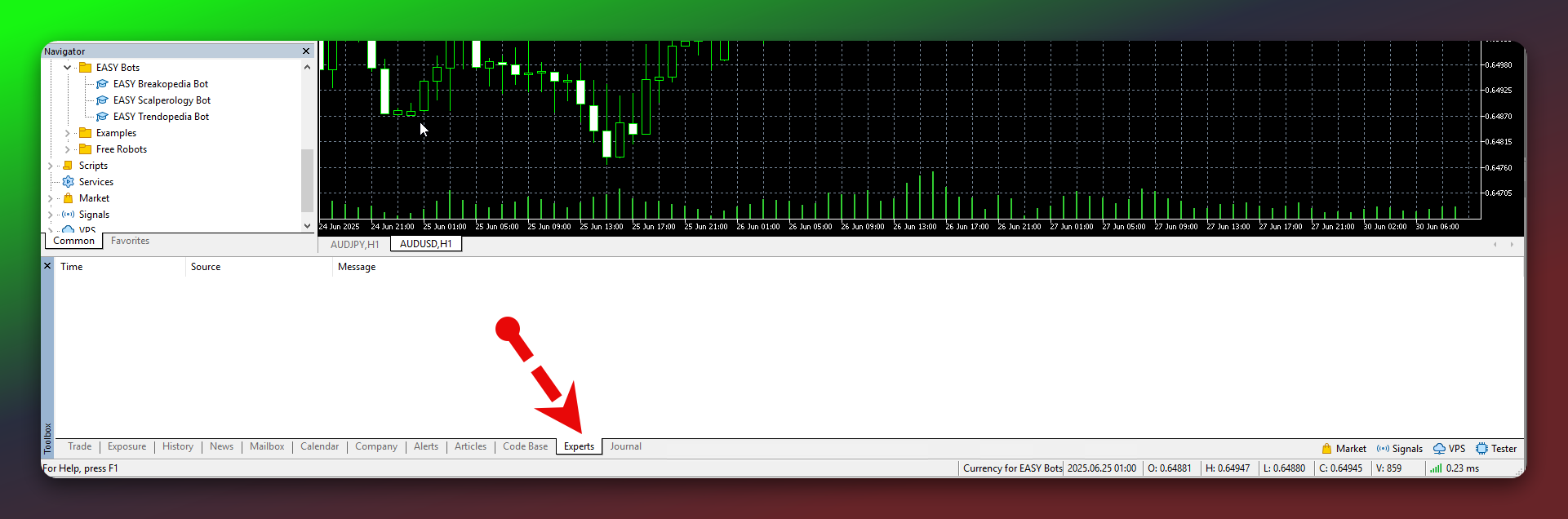
Most errors or warnings from EASY Bots will appear in the Experts tab of your MetaTrader 5 terminal. If you have tried the suggestions below and still encounter issues, please reach out to our support team. We’re here to help! 🤝
1. The Bots Do Not Appear After Copying the Files
- Issue: You downloaded the bot archive, copied the
MQL5folder, but in the Navigator window, there is no EASY Bots folder. - Possible Causes:
– The files were placed in the wrong directory (instead ofMQL5/Experts).
– You did not refresh or restart the terminal after copying. - Solution:
• In MT5, click File → Open Data Folder.
• Verify thatMQL5 → Experts → EASY Botsis located exactly where you copied it.
• Go back to the platform, right-click on Expert Advisors in the Navigator panel, then select Refresh. If done correctly, the bots will become visible.
2. Incorrectly Entered AIAccessID / AiAccessKey 🔑
- Issue: After launching the bot, the Experts tab reports an error (e.g., Bot State: Error) or the bot doesn’t start at all.
- Possible Causes:
– The access keys were entered incorrectly, or contain extra spaces.
– The config file (e.g.,scalperology.txt) is not placed in the correct folder. - Solution:
• Make sure you have copied your AIAccessID and AiAccessKey exactly from your personal account at our website.
• The file storing these keys should usually reside inMQL5 → Files(e.g.,MQL5/Files/scalperology.txt), with no extra characters.
3. AutoTrading (Allow Automated Trading) Is Not Enabled
- Issue: The bot appears in the terminal, but no trades are opened. In the Experts tab, there is no mention of actual order attempts.
- Cause: The “Allow automated trading” setting in MT5 isn’t activated.
- Solution:
• In the main MetaTrader 5 window, ensure the Algo Trading button (at the top) is green (activated).
• Then click Tools → Options → Expert Advisors and check “Allow algorithmic trading.”
4. Missing “http://easytradingai.com” in WebRequest Settings 🌐
- Issue: The bot tries to fetch .set files or optimization data but the Experts tab shows an error like “Cannot access server”.
- Solution:
• Go to Tools → Options → Expert Advisors.
• Under “Allow WebRequest for listed URL:”, addhttp://easytradingai.com.
• Click OK.
5. No Loaded .set Files or “Automatic Set Apply = False” ⚙️
- Issue: The bot starts but doesn’t seem to use any real settings, or it’s not working as expected.
- Possible Cause:
– You haven’t loaded the recommended .set files into the terminal, and the bot may be running default inputs.
– In the inputs, Automatic Set Apply is turned off and you haven’t manually tuned the parameters. - Solution:
• If you want automatic updates, ensureAutomatic Set Apply = Trueand confirm the bot can reach the cloud.
• Otherwise, manually load your .set files (via Load in the bot’s settings or using a saved template).
6. Too Many Open Charts 🖥️
- Issue: The terminal is cluttered with multiple charts (both used and unused), causing confusion or performance slowdowns.
- Solution:
• Close unnecessary charts to keep your workspace organized and reduce overload on lower-spec VPS setups.
7. VPS or Network Latency Issues
- Issue: Trades open late or not at all, and signals aren’t processed quickly.
- Cause: Weak or unstable internet connectivity to the broker or the cloud service.
- Solution:
• Use a high-quality VPS server, preferably close to your broker’s data center.
• The lower the ping, the faster your bot receives updates and executes orders.
8. Ignoring the Experts Tab for Error Descriptions ⛔
- Issue: The user doesn’t check Experts for specific error text (e.g., “Invalid Key” or “Cannot load .set”).
- Solution:
• Always consult the Experts tab whenever something goes wrong. It usually provides a clear hint for what is missing or incorrect.
• If you can’t fix it, screenshot or copy the entire log from the Experts tab and send it to support.
If Nothing Helps — Contact Our Support Team 🤝
Even if you followed all the steps and still face issues, don’t worry! Write us at [email protected] or reach us on Telegram via https://t.me/forexroboteasybot (use the /ask command).
For all the latest EASY Bots news, tips, and upcoming releases, join our official channel: https://t.me/fxroboteasy 🙌
Wishing you smooth and successful trading with EASY Bots! 🚀

More on this topic
Other categories